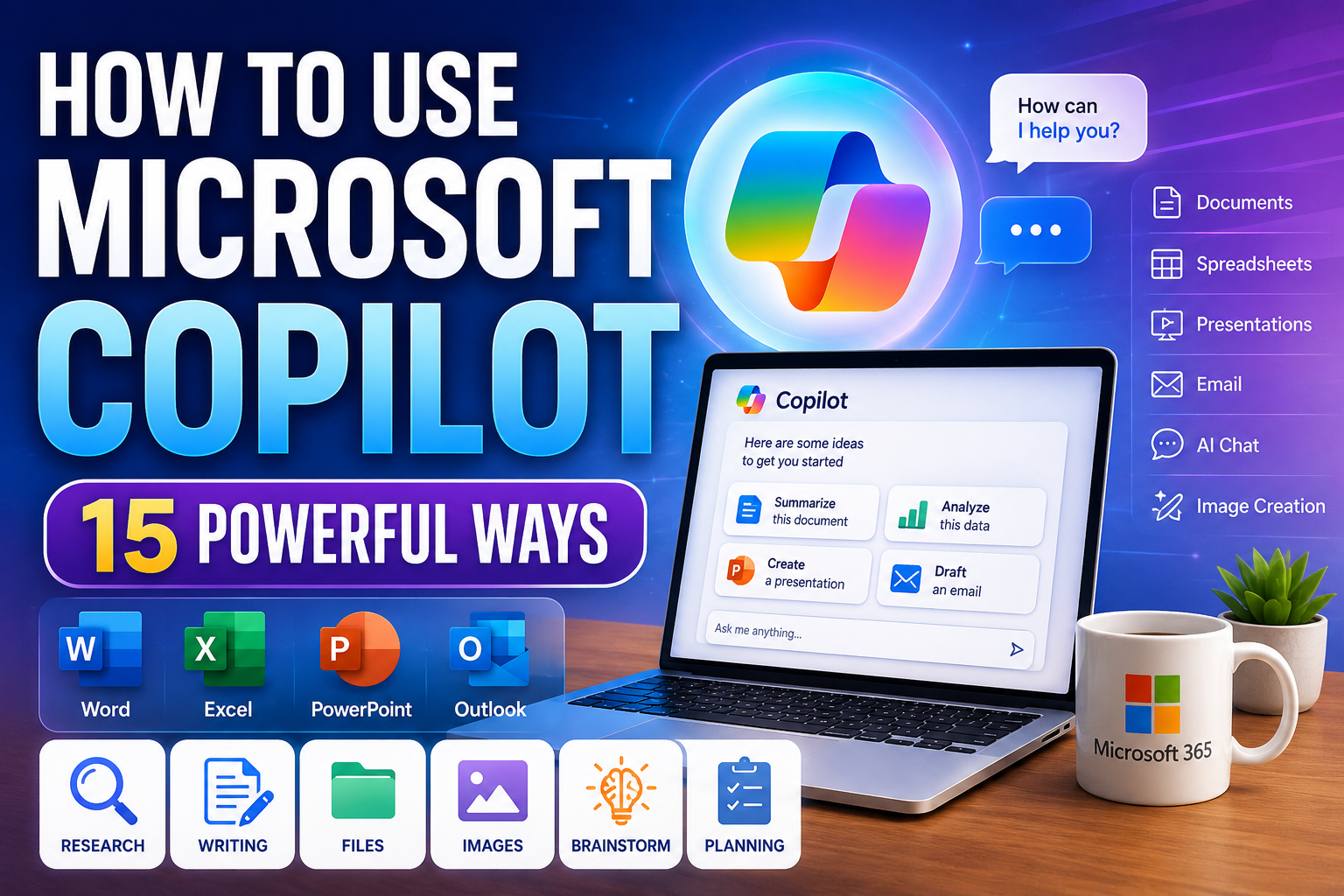
How to Use Microsoft Copilot: 15 Powerful Ways for Beginners
Learning how to use Microsoft Copilot can help you bring AI into everyday tasks such as writing, researching, brainstorming, summarizing information, creating images, working with files, and planning your work.
Microsoft Copilot is Microsoft’s AI assistant, but beginners may encounter the Copilot name in several places. There’s a general Copilot experience available on the web and supported devices, while eligible Microsoft 365 plans can provide Copilot capabilities inside familiar apps such as Word, Excel, PowerPoint, Outlook, and other Microsoft services.
This connection with Microsoft’s ecosystem can make Copilot particularly useful if you already spend much of your day working with Microsoft applications. However, the exact features you can access depend on your account, subscription, device, region, and the Microsoft product you’re using.
In this beginner-friendly guide, we’ll explore 15 practical ways to use Microsoft Copilot, with example prompts for writing, research, productivity, files, images, Microsoft 365, and everyday tasks. We’ll also explain important limitations, privacy considerations, and common mistakes to avoid.
What Is Microsoft Copilot?
Microsoft Copilot is an AI assistant designed to help users find information, generate and improve content, explore ideas, answer questions, and complete a variety of everyday tasks through conversational instructions.
You can give Copilot a request, review its response, and continue the conversation with follow-up questions or additional instructions. For example, you could brainstorm an idea, ask Copilot to organize it into an outline, create a first draft, and then refine individual sections.
Copilot also extends into Microsoft’s broader ecosystem. Depending on the Microsoft product and your eligibility, Copilot capabilities can appear in applications such as Word, Excel, PowerPoint, Outlook, Edge, and Windows. Some experiences can also work with files, images, voice, or visual information.
Because Microsoft continues to update Copilot, individual features, names, limits, and subscription requirements can change. Check Microsoft’s current documentation when a particular capability is important to your workflow.
Microsoft Copilot vs Microsoft 365 Copilot
The Copilot name can be confusing because it refers to related AI experiences across different Microsoft products.
The general Microsoft Copilot experience can be used as an AI assistant for tasks such as asking questions, brainstorming, drafting content, summarizing information, and creating images.
Microsoft 365 Copilot brings AI capabilities into Microsoft’s productivity environment. Depending on your plan and organization, this can include Copilot experiences within applications such as Word, Excel, PowerPoint, Outlook, and Teams, where AI can assist with work in the context of those applications.
This distinction matters because seeing a Copilot feature described online doesn’t necessarily mean it is included with every Microsoft account. Always check the requirements for the specific Copilot feature you want to use.
15 Practical Ways to Use Microsoft Copilot
The following examples demonstrate how to use Microsoft Copilot for practical everyday tasks. Some examples use the general Copilot experience, while others involve Microsoft 365 applications and therefore may require an eligible subscription or account.
1. Research and Explore Information
One of the easiest ways to learn how to use Microsoft Copilot is to use it to explore an unfamiliar topic. You can ask for a beginner-friendly explanation, important concepts, questions to investigate, or an overview that helps you decide what to research next.
When current information is important, pay attention to the sources supporting the response. Open significant sources yourself and verify facts, statistics, quotations, dates, and other details before relying on them.
Example prompt
Help me research [topic]. Start with a beginner-friendly overview, explain the five most important concepts I should understand, identify questions I should investigate further, and provide reliable sources for important factual claims where available.
2. Write and Rewrite Content
Copilot can help turn notes or ideas into a first draft, or improve something you’ve already written. This can be useful for emails, reports, articles, descriptions, social posts, letters, and other everyday writing.
Give Copilot information about your audience, purpose, tone, length, and important points. If you’re rewriting existing material, explain what you want changed and what should remain intact.
Example prompt
Improve the following text for clarity and readability. Keep my original meaning, use a friendly professional tone, remove unnecessary repetition, and don’t add unsupported facts. Briefly explain the major changes you made: [paste text]
3. Summarize Long Information
Copilot can help reduce lengthy information into a more manageable summary. You might use it for notes, reports, articles, instructions, meeting information, or supported files you’re working with.
Tell Copilot what kind of summary you need rather than simply asking it to “summarize this.” For example, you can request key takeaways, action items, important dates, a beginner-friendly explanation, or a short executive summary.
Example prompt
Summarize the following information. Begin with a short overview, then list the five most important points, any significant dates or numbers, and any actions I should take. Don’t introduce information that isn’t supported by the material: [paste information]
4. Create Images From Text Descriptions
Microsoft Copilot can help create images from written descriptions in supported experiences. This can be useful for brainstorming visual concepts, social media graphics, presentation ideas, illustrations, and other creative projects.
Describe the subject, setting, composition, mood, and visual style you want rather than giving only a few words. You can then refine the result by asking for specific changes.
Example prompt
Create an image of [subject] in [setting]. Use a [visual style] appearance with [lighting or mood]. The main subject should be positioned [composition], and the image should communicate [purpose or feeling]. Keep the design clean and suitable for [intended use].
5. Work With Files and Documents
Depending on the Copilot experience you’re using, you may be able to upload or work with supported files and ask questions about their contents. This can help when reviewing documents, reports, notes, presentations, or other information.
Instead of asking for only a general summary, tell Copilot what you need to find. You might request important requirements, dates, decisions, action items, inconsistencies, or explanations of difficult sections.
Check important conclusions against the original file, particularly when accuracy matters.
Example prompt
Review the file I’ve provided. Explain its purpose, summarize the main points, identify important dates, requirements, decisions, and action items, and tell me which sections deserve closer review. Base your response on the file and clearly identify anything you cannot determine from it.
6. Brainstorm and Develop Ideas
Copilot can act as a brainstorming partner when you’re trying to generate possibilities or develop an idea further. You might use it for business ideas, content topics, presentations, project approaches, marketing concepts, names, headlines, or solutions to everyday problems.
Provide constraints to make the brainstorming more useful. Tell Copilot your audience, goal, resources, budget, preferences, or anything you want it to avoid. You can then ask it to evaluate the ideas and develop the strongest ones.
Example prompt
Brainstorm 15 ideas for [project or goal]. My target audience is [audience], my objective is [goal], and my main constraints are [constraints]. Make the ideas practical and varied. Briefly explain each one, then recommend the three strongest options and explain why.
If you’re interested in another general-purpose AI assistant, our guide to How to Use Claude AI: 15 Practical Ways for Beginners covers document analysis, writing, research, learning, coding, Projects, and Artifacts.
7. Use Copilot in Microsoft Word
With an eligible Microsoft 365 plan, Copilot in Word can assist with writing, rewriting, summarizing, and developing documents. This can be useful when you’re starting from rough notes, improving an existing draft, or trying to organize information more clearly.
Give Copilot context about the document’s purpose and audience instead of asking it simply to “write something.” Review the generated content carefully and make sure the final document reflects your own requirements, knowledge, and voice.
Example prompt
Help me create a first draft of a [type of document] for [audience]. The purpose is [goal]. Include these key points: [points]. Use a clear, professional tone and organize the information with appropriate headings. Don’t invent facts, statistics, or sources.
8. Analyze and Organize Data in Microsoft Excel
Copilot capabilities in Excel can help eligible users explore and work with spreadsheet data. Depending on the available features, you may be able to ask questions about your data, identify patterns, create or explain formulas, summarize information, and generate useful insights.
AI-generated analysis should still be checked against the underlying spreadsheet. Verify formulas, totals, assumptions, filters, and important conclusions before using them for business, financial, or other significant decisions.
Example prompt
Analyze the data in this workbook and summarize the most important patterns or changes. Identify any unusual values that deserve investigation and explain which columns or calculations support your observations. Don’t assume missing information, and tell me what I should verify manually.
9. Build Presentations With Microsoft PowerPoint
Copilot in PowerPoint can assist eligible users with developing presentations, organizing ideas into slides, summarizing material, and refining presentation content. This can save time when you already have information but need help turning it into a clear visual structure.
A generated presentation should still be reviewed for accuracy, slide flow, visual consistency, and whether the amount of information is appropriate for your audience. Your own examples, experience, branding, and judgment can make the final presentation more useful and distinctive.
Example prompt
Help me create a presentation about [topic] for [audience]. The goal is [purpose]. Organize it into approximately [number] slides with a clear beginning, middle, and conclusion. For each slide, suggest a title, key points, and an appropriate visual idea. Keep the slides concise and don’t invent factual information.
10. Manage Email With Copilot in Outlook
With an eligible Microsoft 365 plan, Copilot in Outlook can help you work through email more efficiently. Depending on the available features, it can summarize lengthy email threads, help draft messages, improve wording, and assist you in understanding the important points in a conversation.
This can be particularly useful when returning to a long discussion involving several participants. Before sending AI-assisted email, review names, dates, commitments, tone, and other important details yourself.
Example prompt
Summarize this email conversation for me. Identify the main issue, decisions already made, unanswered questions, deadlines, and anything I need to respond to. Then help me draft a concise professional reply that addresses the outstanding points without adding information that isn’t supported by the conversation.
11. Use Copilot While Browsing With Microsoft Edge
Microsoft Edge can provide access to Copilot features while you’re browsing, making it possible to ask questions, explore topics, and work with information without completely separating your AI assistant from your browser workflow.
This can be useful when researching a subject, comparing information, or trying to understand unfamiliar material you encounter online. However, continue checking the original webpages and sources rather than relying entirely on an AI-generated interpretation.
Example prompt
Help me understand this topic. Explain the main ideas in beginner-friendly language, identify the most important claims I should verify, and suggest three follow-up questions that would help me investigate the subject more deeply.
If finding and verifying online sources is your main objective, How to Use Perplexity AI: 15 Powerful Ways for Beginners explores a more research-focused AI workflow built around web search, citations, and source evaluation.
12. Have More Natural Conversations With Copilot Voice and Vision
Some Microsoft Copilot experiences support Voice, allowing you to speak with Copilot instead of typing every instruction. This can be useful for brainstorming, asking questions, practicing ideas aloud, or interacting with AI when typing isn’t convenient.
Copilot Vision can add visual context in supported experiences, allowing Copilot to help you understand what you’re viewing on a screen or through supported visual interactions. Availability and functionality can vary by device, region, account, and Microsoft product.
When using visual or voice-based AI features, remain mindful of what information is being shared and avoid exposing sensitive material unnecessarily.
Example prompt
I’m looking at [describe what you’re viewing or working on]. Help me understand what I’m seeing, explain the important elements in simple language, and guide me through what I should examine next. Don’t make assumptions about anything that isn’t clearly available to you.
13. Plan Projects and Everyday Tasks
Copilot can help turn a large goal into smaller, manageable steps. You can use it to organize a project, create a checklist, prioritize tasks, identify possible obstacles, or develop a realistic sequence of actions.
Give Copilot your objective, deadline, available resources, and limitations. The more relevant context you provide, the more useful the resulting plan is likely to be. Treat the plan as a starting point and adjust it as circumstances change.
Example prompt
Help me create a practical plan for [project or goal]. I want to achieve [objective] by [deadline]. My available resources are [resources], and my main limitations are [constraints]. Break the work into stages, prioritize the most important tasks, and identify possible obstacles I should prepare for.
14. Learn New Skills and Difficult Subjects
Microsoft Copilot can also act as an interactive learning assistant. You can ask it to explain an unfamiliar subject at your current level, provide examples, create practice questions, or explain the same concept differently when something doesn’t make sense.
Rather than asking only for answers, use Copilot to make learning more active. Ask questions, test your understanding, request exercises, and compare AI explanations with reliable educational sources.
Example prompt
Teach me [topic] as a beginner. Start with a simple explanation and an everyday example. Then divide the subject into the five most important concepts I should learn. Teach them one at a time and give me a short question after each section to check my understanding.
For more AI-assisted study techniques, see How to Use ChatGPT for Learning: 15 Practical Ways for examples involving explanations, quizzes, study plans, flashcards, and active practice.
15. Build a Repeatable Microsoft Copilot Workflow
Once you understand how to use Microsoft Copilot for individual tasks, you can combine several capabilities into a repeatable workflow. For example, you might research a subject, summarize the findings, develop an outline, create a document, organize supporting data, and turn the final information into a presentation.
If you use eligible Microsoft 365 Copilot features, parts of that workflow may take place across familiar Microsoft applications. The important principle is to use AI to assist the process while keeping human review, factual verification, and final decisions under your control.
Example prompt
Help me design a repeatable Microsoft Copilot workflow for [task]. Break it into clear stages. For each stage, explain what information I should provide, which Copilot or Microsoft 365 capability could help, what output I should expect, and what I need to review or verify myself.
These 15 examples show that learning how to use Microsoft Copilot goes beyond asking an AI chatbot occasional questions. Depending on the Copilot experience available to you, it can support research, writing, files, images, learning, planning, and productivity across Microsoft’s broader ecosystem.
A Simple Microsoft Copilot Workflow for Beginners
Microsoft Copilot becomes more useful when you treat it as part of a process rather than expecting one prompt to complete an entire task perfectly. A simple workflow can help you get more useful results while keeping accuracy and human judgment at the center of the work.
Here’s a straightforward process beginners can follow:
- Define your goal. Decide exactly what you want Copilot to help you accomplish and what a useful final result should look like.
- Choose the right Copilot experience. Determine whether the general Microsoft Copilot experience is sufficient or whether your task involves an eligible Microsoft 365 Copilot feature in Word, Excel, PowerPoint, Outlook, or another Microsoft application.
- Provide relevant context. Give Copilot the background, audience, requirements, constraints, examples, or supported files it needs to understand the task.
- Give a clear first instruction. Explain what you want produced, how it should be organized, and anything Copilot should avoid.
- Review the response. Check whether Copilot understood your request and look for incorrect, missing, unsupported, or unnecessary information.
- Continue with follow-up prompts. Ask for clarification, alternatives, deeper analysis, different wording, or specific improvements rather than starting over unnecessarily.
- Verify important information. Check facts, sources, calculations, formulas, dates, quotations, and other significant details against reliable information.
- Move the work into the appropriate Microsoft application. When available and useful, continue the task in Word, Excel, PowerPoint, Outlook, or another supported Microsoft 365 environment.
- Add your own judgment. Review the final result for accuracy, usefulness, tone, context, and whether it actually meets your objective.
- Save useful workflows. Keep prompts and processes that work well so you can adapt them for similar tasks later.
Clear instructions are important regardless of which AI assistant you use. Our guide to How to Write ChatGPT Prompts: A Beginner’s Guide with 15 Examples explains prompting techniques that can also be adapted when working with Microsoft Copilot.
If you’re interested in Google’s alternative ecosystem, How to Use Google Gemini: 15 Powerful Practical Ways for Beginners explores Gemini for research, writing, files, learning, planning, and productivity.
Common Mistakes When Using Microsoft Copilot
Microsoft Copilot can make many everyday tasks faster, but useful results still depend on how you use it. AI-generated responses can contain errors, misunderstand context, or omit important information. The following mistakes are worth avoiding.
1. Assuming Every Copilot Answer Is Correct
Copilot can produce inaccurate, outdated, or incomplete information. Verify important facts, statistics, dates, quotations, calculations, technical details, and sources before relying on them.
2. Confusing Microsoft Copilot With Microsoft 365 Copilot
Not every Copilot feature is available to every Microsoft user. Some capabilities depend on your Microsoft 365 plan, account type, application, device, organization, or region. Check the requirements for a feature before assuming it is included with your account.
3. Giving Copilot Too Little Context
Short, vague instructions often produce generic results. Explain your objective, audience, requirements, constraints, relevant background, and preferred format whenever those details affect the task.
4. Accepting the First Response Without Refining It
Copilot is conversational, so the first response doesn’t have to be the final result. Ask follow-up questions, correct misunderstandings, request alternatives, and refine individual sections as necessary.
5. Sharing Sensitive Information Unnecessarily
Think carefully before entering or uploading confidential, personal, financial, proprietary, or other sensitive information. The privacy and data protections that apply can depend on the Copilot product and account you’re using, so review Microsoft’s current privacy and product documentation when this matters.
6. Trusting AI-Generated Sources Without Checking Them
If Copilot provides sources or references, open the important ones yourself. Confirm that the source exists, is sufficiently current, is appropriate for the subject, and actually supports the claim being made.
7. Using AI-Generated Excel Analysis Without Verification
When Copilot assists with spreadsheet data, formulas, calculations, or analysis, verify important results against the underlying data. A plausible-looking conclusion can still be based on an incorrect assumption, formula, range, or interpretation.
8. Publishing AI-Generated Content Without Reviewing It
Whether Copilot helps create an email, report, presentation, image, article, or other material, review the final result yourself. Check accuracy, tone, formatting, originality, context, and whether it genuinely meets your objective.
Microsoft provides different Copilot experiences for consumers, individuals using Microsoft 365, and organizations. Privacy, data handling, available features, and administrative controls can therefore differ between products and account types. Check the documentation that applies specifically to the Copilot experience you’re using.
Frequently Asked Questions About Microsoft Copilot
Is Microsoft Copilot free to use?
Yes. Microsoft offers a free version of Copilot for general questions, web-based tasks, writing, brainstorming, and other everyday AI assistance. Additional Copilot capabilities are available through eligible Microsoft 365 subscriptions and other Microsoft offerings.
Do I need Microsoft 365 to use Copilot?
No. You can use the general Microsoft Copilot experience without purchasing Microsoft 365. However, Copilot capabilities integrated into applications such as Word, Excel, PowerPoint, and Outlook depend on an eligible Microsoft 365 subscription and the specific feature you’re trying to use.
Can Microsoft Copilot analyze files?
Yes. Microsoft Copilot supports uploads including PDF, DOCX, XLSX, PPTX, CSV, TXT, JSON, and several image formats. Microsoft currently allows up to 20 files in a single Copilot conversation, with individual uploaded files limited to 50 MB. Limits and supported formats can change.
Can Microsoft Copilot create images?
Yes. Microsoft includes image generation and editing among the capabilities of its general Copilot experience. Availability and usage limits can depend on the account and service you’re using.
What is Copilot Vision?
Copilot Vision allows Copilot to work with visual information you choose to share, such as your screen or, in supported mobile experiences, your camera. The exact Vision capabilities and requirements vary between consumer Copilot and Microsoft 365 Copilot experiences.
Can I talk to Microsoft Copilot instead of typing?
Yes. Copilot supports voice conversations in supported experiences. Microsoft 365 Copilot is also rolling out voice capabilities that allow users to speak conversationally with Copilot for activities such as brainstorming, preparing for meetings, and finding information.
Does Microsoft use Copilot conversations to train AI models?
This depends on which Copilot product and account type you’re using. Microsoft provides privacy controls for consumer Copilot, while Microsoft states that prompts and responses in Microsoft 365 Copilot Chat with enterprise data protection aren’t used to train the underlying foundation models. Review the privacy information for your particular Copilot experience rather than assuming the same rules apply everywhere.
Is Microsoft Copilot always accurate?
No. Like other generative AI systems, Copilot can produce inaccurate or incomplete answers. Microsoft recommends using your own judgment and checking important facts before making decisions or taking action based on generated responses.
Because Copilot features and availability continue to evolve, check the official Microsoft Copilot Help & Learning Center for current instructions, privacy information, and feature updates.
Final Thoughts on How to Use Microsoft Copilot
Learning how to use Microsoft Copilot effectively is less about trying every available feature and more about identifying where AI can genuinely improve the tasks you already perform.
Copilot can assist with research, writing, summarizing information, brainstorming, files, image creation, learning, and planning. For eligible Microsoft 365 users, Copilot can also extend into familiar productivity applications such as Word, Excel, PowerPoint, and Outlook.
Start with one practical task rather than trying to transform your entire workflow immediately. You might use Copilot to improve a document, summarize information, explore a topic, brainstorm ideas, analyze a file, or organize a project. Once you’re comfortable with the basics, you can explore the Microsoft 365 integrations and other Copilot capabilities available to your account.
Keep human judgment involved throughout the process. Verify important information, review sources, check calculations and spreadsheet analysis, protect sensitive data, and remember that a confident AI-generated response can still be wrong.
Used thoughtfully, Microsoft Copilot can become a useful AI assistant for everyday productivity, particularly for people who already work within Microsoft’s ecosystem.
Microsoft Copilot is only one approach to AI-assisted productivity. If you want to explore Google’s ecosystem as well, read How to Use Google Gemini: 15 Powerful Practical Ways for Beginners for another perspective on using AI for research, writing, files, learning, planning, and everyday work.