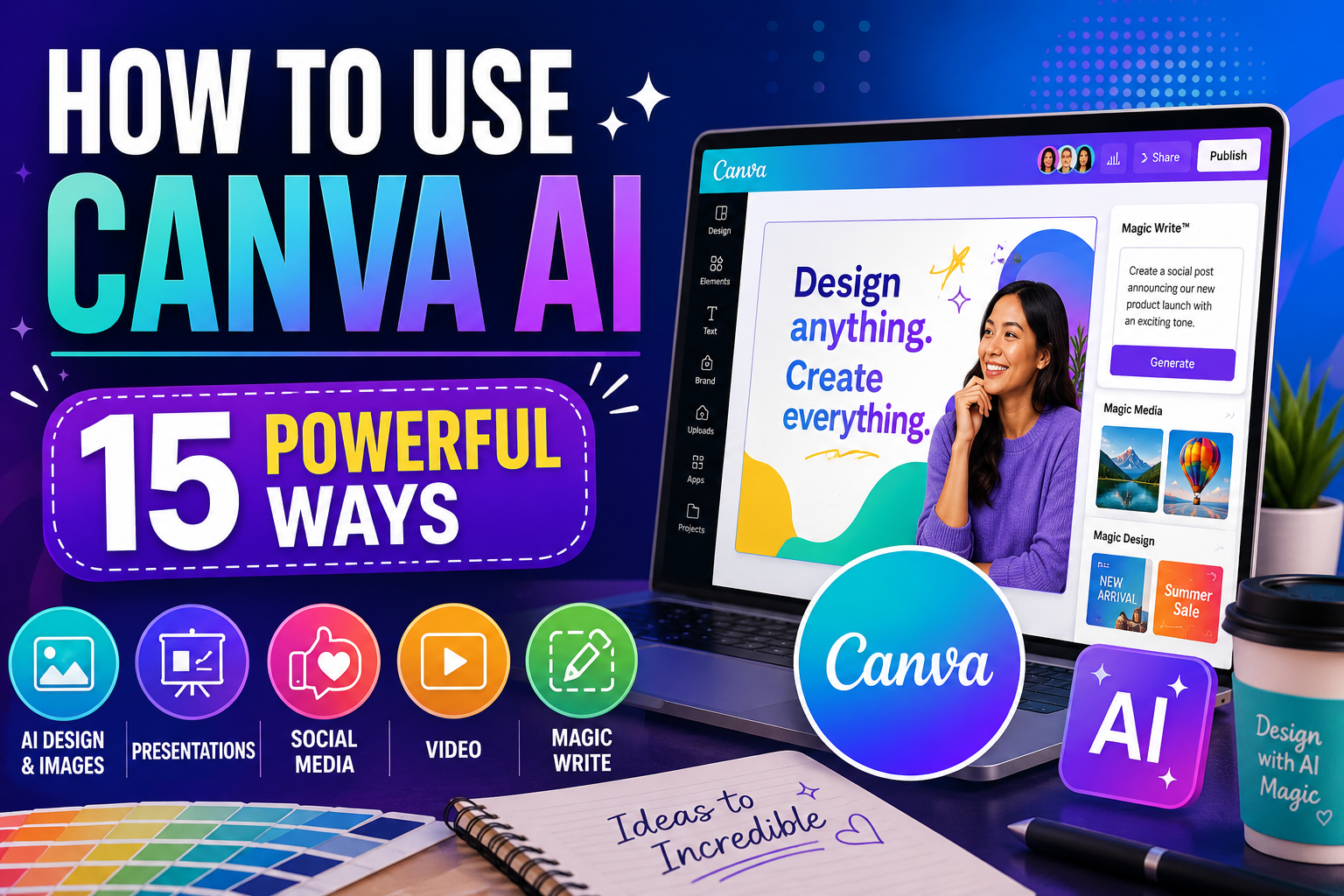
How to Use Canva AI: 15 Powerful Ways for Beginners
Learning how to use Canva AI can help you create professional-looking visual content faster, even if you don’t have advanced design skills. Canva combines artificial intelligence with its familiar design platform to help with images, presentations, social media graphics, writing, video, editing, and other creative tasks.
Instead of starting every project from a blank canvas, you can use AI to generate ideas, create first drafts, produce visuals, rewrite text, modify images, and experiment with different designs. You can then customize the results using Canva’s regular editing tools.
Canva’s AI capabilities are spread across Canva AI, Magic Studio, Magic Write, Dream Lab, and other AI-powered features. Some tools and usage limits depend on your Canva plan, account, region, language, and the feature you’re using.
In this beginner-friendly guide, we’ll explore 15 practical ways to use Canva AI, with examples you can adapt for business, social media, presentations, marketing, education, and everyday content creation. We’ll also cover common mistakes, limitations, and important things to check before publishing AI-generated content.
What Is Canva AI?
Canva AI refers to the artificial intelligence features built into Canva’s visual communication and design platform. These tools can assist with different stages of the creative process, from generating an initial idea to editing and refining the finished content.
Depending on the Canva experience and features available to you, AI can help generate designs and images, write or rewrite text, create presentation content, edit visual elements, work with data, translate content, and perform other creative tasks.
The important difference between Canva AI and a general-purpose chatbot is that Canva combines AI generation with a visual editor. After AI creates something, you can continue working with the result by changing fonts, layouts, images, colors, text, branding, and other design elements.
This makes Canva AI particularly useful when your final output needs to be something visual—such as a social media post, presentation, flyer, graphic, video, document, or marketing asset.
Is Canva AI the Same as Magic Studio?
Not exactly. Magic Studio is Canva’s collection of AI-powered creative features, while Canva has continued expanding AI throughout the wider platform. You may therefore encounter names such as Canva AI, Magic Write, Magic Design, Magic Media, Dream Lab, Magic Edit, Magic Grab, and other AI-assisted tools depending on what you’re creating.
Canva regularly changes and expands these capabilities, so individual feature names, limits, and availability may evolve. Rather than focusing only on one feature name, this guide concentrates on the practical tasks Canva’s AI tools can help you accomplish.
15 Practical Ways to Use Canva AI
The following examples demonstrate how to use Canva AI for real creative tasks. You don’t need to use every feature. Start with the ones that solve problems you already have, then explore additional tools as your confidence grows.
1. Generate a Design From an Idea
One of the easiest ways to learn how to use Canva AI is to start with an idea and let AI help develop the first visual direction. Instead of choosing every element manually, you can describe what you’re creating, who it’s for, and the style you want.
This can be useful for social media posts, flyers, promotional graphics, invitations, presentations, and other visual projects. Treat the AI-generated design as a starting point rather than a finished product. Adjust the wording, images, fonts, colors, spacing, and branding before publishing.
Example prompt
Create a modern promotional design for [business, product, or event]. The target audience is [audience]. Use a clean, professional style with space for a headline, short description, call to action, and relevant visual. The design will be used for [platform or purpose].
2. Create Original Images With AI
Canva’s AI image-generation capabilities can turn written descriptions into new visuals. This can help when you need an illustration, concept image, background, creative scene, or other visual that you don’t already have in your media library.
Detailed descriptions generally provide more direction than short prompts. Describe the subject, setting, composition, lighting, mood, and intended use. You can experiment with different versions and then continue editing the result inside Canva.
Before using AI-generated images commercially, review Canva’s current terms and consider whether the result contains recognizable brands, copyrighted characters, public figures, or other material that could create usage concerns.
Example prompt
Create a professional image of [subject] in [setting]. Use [lighting] with a [mood] atmosphere and a clean [visual style] appearance. Position the main subject on the [left/right/center] and leave clear space for text. The image will be used for [purpose].
3. Write and Rewrite Content With Magic Write
Canva’s Magic Write can assist with text while you’re creating content. You can use it to brainstorm ideas, create first drafts, rewrite existing text, shorten copy, expand an idea, or adjust the tone of your writing.
This can be particularly convenient when the words and design belong to the same project. For example, you could create a social graphic and then use AI to help develop the headline, supporting copy, and call to action without moving to a separate writing application.
Review AI-generated writing before publishing it. Check factual claims, names, statistics, tone, and whether the copy actually reflects your brand or purpose.
Example prompt
Write three versions of promotional copy for [product, service, or topic]. The audience is [audience] and the goal is [goal]. Use a clear, friendly tone. Give each version a short headline, two sentences of supporting copy, and one concise call to action.
If writing is a major part of your workflow, our guide to How to Use ChatGPT for Writing: 15 Practical Ways explores AI-assisted drafting, rewriting, editing, brainstorming, and content development in greater depth.
4. Create Presentations Faster With AI
Canva AI can help you move from a presentation idea to an initial visual structure much faster. You can describe your topic, audience, and objective, then use Canva’s AI-assisted tools to help develop slides, layouts, written content, and visual ideas.
This can be useful for business presentations, lessons, proposals, training material, webinars, and project updates. AI can provide the starting structure, but you should still review the slide order, simplify crowded slides, verify factual information, and customize the presentation for your audience.
Example prompt
Create a 10-slide presentation about [topic] for [audience]. The goal is [purpose]. Start with a strong introduction, organize the main ideas logically, keep each slide concise, and finish with a clear conclusion. Suggest an appropriate visual for each slide.
5. Create Social Media Content
Canva is widely used for social media design, and its AI features can speed up the process of turning an idea into a finished post. You can generate visual concepts, headlines, captions, backgrounds, images, and different creative directions before refining the result in Canva’s editor.
This can be useful when creating content for platforms such as Instagram, Facebook, LinkedIn, Pinterest, TikTok, or other social channels. Make sure the dimensions, text size, branding, and amount of information suit the platform where the design will appear.
Rather than publishing every AI-generated variation, choose the strongest concept and customize it so your content develops a recognizable visual identity.
Example prompt
Create a social media post about [topic] for [platform]. My audience is [audience] and the goal is [goal]. Use a clean, attention-grabbing design with a short headline, minimal supporting text, and a clear call to action. Suggest three different creative directions.
6. Edit and Transform Photos With AI
Canva includes AI-assisted editing capabilities that can help modify existing images. Depending on the feature available to you, you may be able to remove unwanted elements, replace or transform parts of an image, separate subjects from backgrounds, reposition elements, or make other visual changes without advanced photo-editing skills.
These tools can save considerable time when preparing marketing graphics, social content, presentations, product visuals, or personal projects. AI edits aren’t always perfect, so inspect edges, shadows, reflections, hands, text, and other detailed areas before using the finished image.
Example prompt
Remove [unwanted object] from this image and reconstruct the background naturally. Keep the main subject unchanged and maintain consistent lighting, shadows, perspective, and image quality.
7. Create and Edit Videos With AI
Canva’s AI-powered video tools can help turn ideas, text, images, and other content into video material without requiring advanced video-editing experience. Depending on the features available to you, AI can assist with generating video elements, creating clips, developing scripts, adding visual content, and speeding up parts of the editing process.
This can be useful for social media videos, promotional content, presentations, educational material, and short-form marketing. AI-generated video should still be reviewed carefully for visual errors, pacing, factual accuracy, and whether the final result suits the platform where you’ll publish it.
Example prompt
Help me create a short video about [topic] for [platform]. The audience is [audience] and the goal is [goal]. Start with an attention-grabbing opening, organize the video into short scenes, suggest visuals and on-screen text for each scene, and finish with a clear call to action.
8. Resize and Adapt Designs for Different Platforms
A design that works well on one platform may not fit another. Canva’s resizing and transformation tools can help adapt existing designs for different formats, saving you from rebuilding each version manually.
For example, you might begin with an Instagram post and create versions for an Instagram Story, Facebook post, LinkedIn graphic, presentation slide, or other format. After resizing, review each version manually because text, images, and important design elements may need repositioning.
Example prompt
Adapt this design for [new platform or format]. Keep the same message, branding, colors, and main visual, but reorganize the layout so the headline, important information, and call to action remain easy to read in the new dimensions.
9. Translate Designs Into Other Languages
Canva’s translation capabilities can help adapt written content in a design for different languages. This can be useful for international audiences, multilingual marketing, presentations, educational material, social content, and other projects that need several language versions.
Translation can affect the layout because the same message may require more or fewer words in another language. Review text boxes, spacing, line breaks, and font support after translating. For important public-facing or professional material, have a fluent speaker review the final translation for meaning, tone, and cultural appropriateness.
Example prompt
Translate the text in this design from [original language] into [target language]. Preserve the original meaning and use natural language appropriate for [audience]. Keep brand names unchanged and flag any phrases that may require cultural adaptation rather than a literal translation.
Canva AI is particularly useful when your final output needs to be visual. For a broader AI assistant that can help with research, writing, files, planning, and productivity, see How to Use Microsoft Copilot: 15 Powerful Ways for Beginners.
10. Remove Backgrounds and Unwanted Objects
Canva’s AI-assisted editing tools can help clean up images by removing backgrounds or unwanted elements. This can be useful for product images, profile photos, promotional graphics, presentations, social media posts, and other designs where you need greater control over the subject.
After removing or replacing something, inspect the image carefully. Complex backgrounds, hair, shadows, reflections, transparent objects, and fine edges can sometimes produce imperfect results that need additional adjustment.
Example prompt
Remove the background from this image while keeping the main subject and fine edges as natural as possible. Preserve important details such as hair, clothing, shadows, and transparent areas where appropriate.
11. Create Multiple Designs From Data With Bulk Create
When you need many similar designs, Canva’s Bulk Create capabilities can help reduce repetitive work. Instead of manually changing names, prices, dates, product details, quotations, or other information across numerous designs, you can connect structured data to a template and generate multiple versions.
This can be useful for certificates, product graphics, event materials, social posts, personalized marketing assets, and other projects that use the same layout with changing information.
Review the generated versions before publishing. Longer names, unusual numbers, missing values, and different text lengths can affect the layout even when the original template looks correct.
Example prompt
Create a reusable design template with fields for [name], [title], [date], and [message]. I need to generate multiple versions from structured data while keeping the same branding and layout. Make sure the variable text areas have enough space for different content lengths.
12. Work With Data Using Canva Sheets and AI
Canva Sheets extends Canva beyond traditional visual design by providing a place to organize data and connect it with creative workflows. AI-assisted capabilities can help with tasks such as generating or transforming information, organizing content, identifying useful patterns, and preparing data for visual presentation.
This can be particularly useful when your data eventually needs to become something visual, such as charts, reports, social content, presentations, or multiple branded assets.
As with any AI-assisted data work, verify important calculations, categories, generated information, and conclusions before using them for business or other consequential purposes.
Example prompt
Review this dataset and help me organize it for a visual report. Identify the most useful categories, important patterns, and information that may need cleaning or verification. Then suggest which findings would work best as charts, summary statistics, or visual highlights.
13. Create Interactive Experiences With Canva Code
Canva Code can help you create interactive elements by describing what you want in natural language rather than building everything manually from scratch. Depending on Canva’s current capabilities, this can include interactive experiences such as calculators, quizzes, games, widgets, or other elements that can become part of a Canva project.
This opens up possibilities beyond static graphics. For example, an educator might create a simple interactive quiz, while a business could experiment with a calculator or interactive marketing experience.
Test anything generated with AI before sharing it publicly. Check calculations, buttons, instructions, mobile behavior, accessibility, and whether the experience works as intended.
Example prompt
Create a simple interactive [quiz/calculator/tool] for [audience]. It should allow users to [describe interaction] and then display [desired result]. Keep the interface simple, explain what each control does, and make the experience easy to use on both desktop and mobile.
14. Keep AI-Generated Designs Consistent With Your Brand
AI can generate ideas quickly, but producing more content isn’t useful if every design looks unrelated. Canva’s branding features can help you maintain greater consistency across AI-assisted content by applying approved colors, fonts, logos, imagery, and other visual guidelines.
This is especially important for businesses and creators producing content regularly. Use AI for experimentation and speed, then bring the strongest results back within your established visual identity.
Brand-related features and controls can vary depending on your Canva plan, so check what’s available in your account.
Example prompt
Create three design concepts for [content type] that fit our brand. Use [brand colors], [font/style preferences], and a [tone] visual style. Keep the logo area clear and make the designs recognizable as part of the same brand while giving each concept a different layout.
15. Build a Repeatable Canva AI Content Workflow
Once you understand how to use Canva AI for individual tasks, you can combine several capabilities into a repeatable content workflow. For example, you could brainstorm an idea, draft the copy, generate a visual, create the design, adapt it for several platforms, and then produce additional variations from the same concept.
A repeatable workflow can be especially useful for businesses, marketers, creators, educators, and anyone who produces visual content regularly. AI can speed up individual stages while you remain responsible for the strategy, factual accuracy, branding, quality, and final approval.
Example prompt
Help me create a repeatable Canva AI workflow for producing [type of content]. Break the process into clear stages from idea to finished design. For each stage, explain which Canva AI capability could help, what information I should provide, what I need to review myself, and how I can reuse the process for future content.
These 15 examples show that learning how to use Canva AI goes far beyond generating a single image. Canva’s AI capabilities can support writing, design, presentations, social media, photo editing, video, translation, data-driven content, interactive experiences, and repeatable creative workflows.
A Simple Canva AI Workflow for Beginners
Canva AI becomes more useful when you treat it as part of a creative process rather than expecting one prompt to produce a perfect finished design. A simple workflow helps you combine AI speed with your own ideas, branding, and quality control.
Here’s a straightforward process beginners can follow:
- Define what you’re creating. Decide whether you need a social post, presentation, flyer, video, image, document, or another type of visual content.
- Identify the audience and goal. Know who should see the content and what you want them to understand, feel, or do.
- Give Canva AI clear instructions. Describe the subject, purpose, style, format, important text, and visual direction you want.
- Generate several ideas. Don’t automatically choose the first result. Compare different concepts and select the strongest starting point.
- Customize the design. Adjust the layout, text, images, fonts, colors, spacing, and other elements rather than publishing the AI-generated version unchanged.
- Apply your branding. Where appropriate, use consistent colors, fonts, logos, imagery, and visual conventions.
- Check the content carefully. Review spelling, names, dates, prices, statistics, factual claims, AI-generated images, and other important details.
- Adapt the design for its destination. Make sure dimensions, text size, visual hierarchy, and layout work properly on the platform where the content will appear.
- Create additional versions when useful. Resize, translate, or adapt the strongest design for other platforms and audiences rather than rebuilding everything from scratch.
- Save successful processes. Keep useful templates, prompts, brand elements, and workflows so future content becomes faster and more consistent.
Canva AI is particularly useful when the finished result needs to be visual. If you need help developing the ideas, research, or written content behind those designs, How to Use Claude AI: 15 Practical Ways for Beginners explores another approach to AI-assisted knowledge work.
For research-heavy content where finding and checking web sources matters, see How to Use Perplexity AI: 15 Powerful Ways for Beginners.
Common Mistakes When Using Canva AI
Canva AI can make visual content creation much faster, but faster doesn’t automatically mean better. AI-generated designs, images, writing, and other content still require human review. Avoiding the following mistakes can help you produce more accurate, professional, and distinctive work.
1. Publishing the First AI-Generated Design
Treat the first result as a starting point. Compare alternatives and improve the layout, typography, imagery, spacing, colors, and wording before publishing. Customization helps prevent your content from looking generic.
2. Ignoring Your Brand Identity
Generating large amounts of content can create an inconsistent visual identity if every design uses different fonts, colors, imagery, and styles. Apply your established brand elements where appropriate so your content remains recognizable.
3. Trusting AI-Generated Text Without Checking It
Canva’s writing tools can produce inaccurate facts, awkward wording, or information that doesn’t fit your audience. Check names, dates, statistics, quotations, product information, and other factual claims before publishing.
4. Ignoring Errors in AI-Generated Images
Examine generated and edited images closely. AI can produce unusual hands, distorted objects, incorrect text, inconsistent shadows, unrealistic reflections, or other visual problems that aren’t immediately obvious.
5. Assuming AI-Generated Content Is Automatically Safe to Use Commercially
Don’t assume that using an AI tool automatically removes copyright, trademark, publicity, or other intellectual-property considerations. Review Canva’s current terms and licensing information, particularly when creating commercial content, and be cautious with prompts involving recognizable brands, characters, artworks, or people.
6. Forgetting About Privacy
Think carefully before uploading confidential business material, personal information, private photographs, proprietary data, or other sensitive content. Review the privacy and data terms that apply to the Canva features and account you’re using.
7. Using the Wrong Dimensions for the Platform
A design can look excellent in Canva but perform poorly if it uses the wrong dimensions or becomes difficult to read on a phone. Check the requirements for the destination platform and review resized versions individually.
8. Using AI to Replace Creative Judgment
Canva AI can generate possibilities quickly, but it doesn’t know your audience, business, message, or goals as well as you do. Use AI to accelerate parts of the creative process while keeping important decisions about strategy, quality, accuracy, and branding under your control.
Canva’s AI features, usage limits, licensing terms, and availability continue to evolve. When you’re using AI-generated content commercially or working with sensitive material, check Canva’s current official policies rather than relying on assumptions about how the technology works.
Frequently Asked Questions About Canva AI
Is Canva AI free to use?
Yes. Canva says its AI features are available to everyone, with a range of AI-powered tools accessible on the Free plan. Paid plans provide increased usage and access to additional or more advanced features. Exact limits can vary by tool and plan.
What can I use Canva AI for?
Canva AI can assist with visual design, image generation, writing, presentations, photo editing, translation, data-related creative work, interactive experiences, and other content-creation tasks. Canva continues to add AI capabilities across its platform, so the exact tools available may change over time.
What is Canva Magic Studio?
Magic Studio is Canva’s collection of AI-powered creative tools. It brings AI capabilities into different parts of the Canva workflow so users can generate, edit, transform, and scale content without moving between numerous separate applications.
Can Canva AI create images from text?
Yes. Canva includes AI-powered image-generation capabilities that can create visuals from written descriptions. Generated images can then be incorporated into designs and further customized using Canva’s editing tools.
Can I use Canva AI content commercially?
Canva says its AI features can be used for personal and commercial projects. However, Canva also warns that AI-generated output may not be exclusive and doesn’t guarantee that generated images, designs, or text are cleared for commercial use. You remain responsible for checking whether permissions may be required for things such as artwork, photographs, trademarks, or logos.
Does Canva own the content I create with Canva AI?
Canva currently says that, between you and Canva and subject to its terms, you own the designs you generate with Canva AI and Canva doesn’t make a copyright claim over that generated content. However, copyright law surrounding/ purely AI-generated material can vary by jurisdiction and remains an evolving area.
Does Canva use my designs to train its AI?
Canva provides privacy controls governing whether your content can be used to improve AI-powered features. Canva says users can review and change these choices through Privacy Settings.
Are Canva AI results always accurate?
No. Canva advises users to review AI output where accuracy matters because generated content can contain mistakes. This is particularly important for factual text, data, translations, calculations, and content intended for professional or commercial use.
Because Canva’s AI features, plans, usage limits, and capabilities continue to evolve, visit the official Canva AI page for current information.
Final Thoughts on How to Use Canva AI
Learning how to use Canva AI effectively isn’t about asking artificial intelligence to make every creative decision for you. Its greatest value comes from speeding up parts of the creative process while leaving you in control of the final result.
Canva AI can help you move from an idea to a visual concept, generate images, develop written content, create presentations, edit photographs, produce social media graphics, work with video, translate designs, organize data, and experiment with interactive experiences.
Start with one task you already perform regularly. You might use AI to create several design concepts, generate a background image, improve some copy, develop a presentation outline, or adapt an existing design for another platform. Once you’re comfortable with the results, you can gradually introduce additional AI capabilities into your workflow.
Don’t skip the final review. Check spelling, facts, visual details, branding, dimensions, licensing considerations, and whether the design actually communicates what you intended. AI can make creation faster, but quality still depends heavily on the decisions you make after generation.
Used thoughtfully, Canva AI can make professional visual content more accessible while giving beginners and experienced creators alike more ways to experiment, iterate, and turn ideas into finished designs.
If you want to develop the research behind your visual content before you start designing, our guide to How to Use Perplexity AI: 15 Powerful Ways for Beginners explains how to find sources, investigate topics, compare information, and build research-backed content with AI.