How to Use Zapier AI: 15 Powerful Ways to Automate Your Work
Learning how to use Zapier AI can help you automate repetitive work, connect the apps you already use, and spend less time moving information manually from one place to another.
Zapier is an automation platform that connects thousands of apps and allows information to move between them through automated workflows. Its AI capabilities can also help you build workflows using natural language, work with AI-generated content, process information, and automate more complex tasks.
Instead of repeatedly copying data between apps, sending routine notifications, organizing incoming information, or performing the same digital tasks every day, you can create automated workflows that perform many of these actions for you.
In this beginner-friendly guide, we’ll explore 15 practical ways to use Zapier AI for workflow automation, email, content, lead management, data organization, customer support, productivity, and other everyday business tasks.
How to use Zapier AI
Zapier is an automation platform designed to connect different apps and services so they can work together. An automated workflow in Zapier is commonly called a Zap, which can begin when something happens in one app and then perform one or more actions in other apps.
Zapier’s AI capabilities make automation easier to build and extend. Instead of relying entirely on manually configuring every part of a workflow, AI can help you describe what you want to automate, work with information inside a workflow, generate or transform content, and develop more intelligent automation processes.
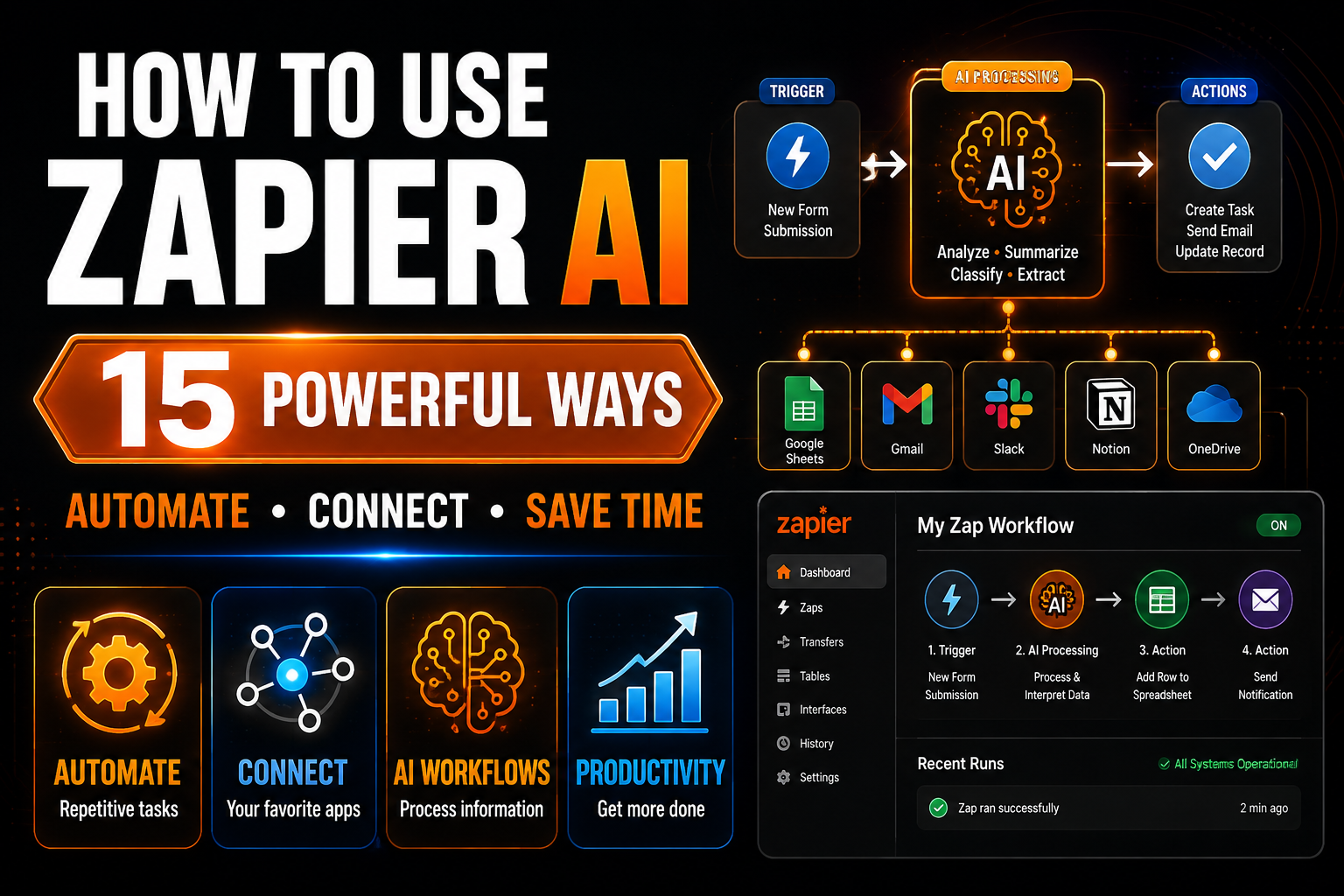
For example, a workflow could detect a new form submission, use AI to analyze or categorize the information, add the details to another app, and automatically send an appropriate notification. This allows several separate tasks to happen as part of one connected process.
The important thing to understand is that Zapier AI isn’t simply another chatbot. Its main value comes from combining AI with automation and connected apps, allowing AI-generated or analyzed information to trigger practical actions elsewhere in your workflow.
How to Get Started With Zapier AI
Getting started begins with deciding what repetitive task you want to automate. Think about an activity you perform regularly, identify which app starts the process, and decide what should happen automatically afterward.
For a simple workflow, you might choose a trigger such as receiving a new form response, email, lead, or spreadsheet entry. You can then add actions that send information to another app, create a task, generate a notification, update a record, or perform another supported step.
AI can help during this process by allowing you to describe the workflow you want in natural language or by processing information as part of the automation. Start with a simple workflow you understand before attempting complicated multi-step automations.
You can create an account and explore the available automation and AI features through the official Zapier website.
Example prompt
Help me create a workflow that starts when [trigger] happens in [app]. Then [action] should happen in [second app]. Explain the workflow step by step, identify the information that needs to pass between the apps, and point out anything I should test before turning the automation on.
15 practical ways to use Zapier AI
Now that you understand the basics, let’s look at 15 practical ways to use Zapier AI to automate repetitive tasks, connect your apps, manage information, improve productivity, and build smarter workflows.
1. Build Automated Workflows With Natural Language
One of the easiest ways to learn how to use Zapier AI is to describe the workflow you want in everyday language. Instead of figuring out every automation step before you begin, you can explain what should trigger the process and what you want to happen afterward.
For example, you might want information from a form to be added to a spreadsheet, a notification sent to your team, and a follow-up task created automatically. AI can help translate that objective into a workflow structure that you can then review and configure.
Be specific about the apps involved, the event that should start the workflow, and the result you expect. Always review the suggested steps and test the automation before relying on it for important work.
Example prompt
Build a workflow that starts when a new response is submitted through [form app]. Add the person’s name, email address, and message to [spreadsheet or database app], then send a notification through [communication app]. Explain each step and tell me what information needs to be mapped between the apps.
2. Automatically Organize and Categorize Incoming Information
Businesses and individuals often receive information through forms, emails, support requests, surveys, and other channels. Zapier AI can help process that incoming information and organize it before sending it to the next part of a workflow.
For example, AI could analyze the content of an incoming message, identify its topic or priority, and then route the information to an appropriate spreadsheet, database, task list, or communication channel.
Define your categories clearly so the automation has meaningful choices to work with. For important workflows, include a way to review uncertain results rather than assuming every AI classification will be correct.
Example prompt
Analyze this incoming message and classify it as [category 1], [category 2], [category 3], or [category 4]. Return only the category, a one-sentence summary, and a priority level of low, medium, or high. If the message doesn’t clearly fit a category, label it “Needs Review.
3. Summarize Emails, Messages, and Other Incoming Content
Zapier AI can help turn long incoming messages into shorter summaries before they reach you or another part of your workflow. This can be useful when you regularly receive lengthy emails, form submissions, customer requests, meeting notes, or other text-heavy information.
Instead of manually reading every item before deciding what requires attention, an automation can generate a concise summary, extract important details, and pass that information to another app.
Be careful when the original message contains important instructions, financial information, contractual language, or other details where summarization could remove useful context. Keep access to the original content and review it whenever the summary affects an important decision.
Example prompt
Summarize the following message in no more than three bullet points. Identify the main request, any deadline or date mentioned, and any action that needs to be taken. Do not invent missing information, and mark anything unclear as “Needs Review”: [message]
If email is a major part of your daily workload, ChatGPT for Email Writing: 15 Powerful Ways to Save Time explores additional ways AI can help draft, improve, organize, and respond to emails more efficiently.
4. Capture and Organize New Leads Automatically
Zapier AI can help create a smoother process for handling new leads from forms, landing pages, advertising campaigns, or other sources. Instead of manually copying contact details into another system, an automated workflow can capture the information and send it where it needs to go.
AI can also help analyze information submitted by a lead. For example, it could summarize the person’s request, categorize their interests, or identify which inquiries may require faster attention before the information is added to your customer-management workflow.
Be careful when using AI to prioritize people automatically. A useful workflow should rely on relevant information rather than unsupported assumptions about someone’s likelihood of becoming a customer.
Example prompt
Analyze this new lead submission. Summarize what the person is interested in, identify the product or service mentioned, classify the inquiry as general information, sales inquiry, support request, or needs review, and extract any requested follow-up date. Do not infer information that wasn’t provided.
5. Create Automated Content Workflows
Content creation often involves several repetitive steps beyond writing the content itself. Ideas may need to be collected, organized, assigned, reviewed, published, and then shared across different platforms. Zapier can help connect parts of this process.
For example, adding a new content idea to a spreadsheet or database could trigger an automation that creates a task, prepares information for an AI step, notifies the appropriate person, or moves the idea into another stage of your workflow.
Keep human review before publication when AI is involved in creating or transforming content. Automation can speed up the process, but factual accuracy, brand voice, originality, and final publishing decisions still benefit from human judgment.
Example prompt
Create a content workflow that starts when I add a new topic to [app]. Send the topic to an AI step to create a short brief containing the target audience, main angle, five key points, and questions the content should answer. Then create a draft task in [task-management app] for human review.
6. Automate Parts of Your Social Media Workflow
Zapier can help reduce repetitive work around social media by connecting content-planning tools, spreadsheets, forms, storage services, and supported social platforms. This can make it easier to move approved content through a consistent publishing process.
For example, an approved content item could trigger an automation that prepares platform-specific text, creates a publishing task, updates a content calendar, or sends a notification that the post is ready for final review.
Avoid completely removing human review from public-facing content. AI-generated captions can contain incorrect information, awkward wording, unsuitable hashtags, or claims that don’t accurately represent your business.
Example prompt
Turn this approved content idea into separate drafts for [platform 1] and [platform 2]. Adapt the length and structure for each platform, preserve the original message, use a natural tone, and do not add facts or claims that aren’t in the source material: [content]
If you’re developing content specifically for social platforms, ChatGPT for Social Media: 15 Powerful Ways to Create Better Content provides additional ideas for captions, content planning, hooks, engagement, and social media workflows.
7. Organize and Route Customer Support Requests
Customer questions can arrive through email, forms, chat systems, and other channels. Zapier AI can help analyze incoming requests, summarize what the customer needs, categorize the issue, and send the information to the appropriate part of your support workflow.
For example, a new support request could be classified as a billing question, technical problem, account issue, product question, or another predefined category. The workflow could then create a support task, update a record, or notify the appropriate person.
AI shouldn’t automatically handle every sensitive or complicated customer issue. Create clear rules for situations that require human attention, particularly complaints, refunds, account security concerns, unusual requests, or messages the AI cannot confidently classify.
Example prompt
Analyze this customer message and classify it as billing, technical support, account issue, product question, general inquiry, or needs review. Provide a two-sentence summary, identify the customer’s main request, and assign a priority of low, medium, or high. Do not invent information that isn’t in the message.
8. Extract Important Information From Text
A useful automation often depends on turning unstructured text into information that another app can understand. Zapier AI can help extract specific details from emails, forms, messages, notes, and other text before passing those details to the next step.
For example, you might need to identify a person’s name, company, requested service, deadline, order reference, or other information buried inside a longer message. The extracted details can then be added to a spreadsheet, database, task, or another connected system.
Tell the AI exactly which fields you need and what it should do when information is missing. This is safer than allowing the model to guess values simply because your workflow expects every field to contain something.
Example prompt
Extract the following information from this message: customer name, email address, company, requested service, deadline, and order or reference number. Return each item as a separate labeled field. If any information isn’t provided, return “Not provided” instead of guessing: [message]
9. Create Tasks and Manage Project Workflows
Zapier can connect incoming information with task and project-management systems so that important work doesn’t have to be entered manually. A form submission, email, meeting note, or database update could automatically create a task and provide the information needed to act on it.
AI can help turn unstructured information into a clearer task description by identifying the objective, deadline, relevant details, and possible next steps before the task is created.
Review how your automation handles priorities and deadlines. AI may misunderstand urgency or infer a date that wasn’t actually provided, so important scheduling decisions should be based on explicit information whenever possible.
Example prompt
Turn the following information into a clear project task. Create a short task title, summarize what needs to be done, identify any explicitly stated deadline, list the required information or resources, and suggest the next action. If no deadline is provided, write “No deadline provided”: [information]
If you need a central place to organize the tasks, notes, projects, and information produced by your workflows, Organize Your Work With Notion: A Beginner-Friendly Guide explains how to build a more structured workspace.
10. Automate Document and File Workflows
Documents and files often move through several stages before they’re ready to use. A file may be uploaded, renamed, stored, reviewed, summarized, shared, or connected to another record. Zapier can help automate parts of this process by connecting supported storage, productivity, and business apps.
AI can add another layer by helping process information associated with a document. Depending on the workflow and available integrations, you might extract important information, create a summary, categorize the content, or prepare details that another step can use.
Be careful when automating workflows involving confidential or sensitive documents. Check which information is being sent between apps, who has access to it, and whether human review is required before the workflow takes further action.
Example prompt
When a new document is added to [storage app], create a workflow that identifies the document type, generates a short summary, extracts any important dates or action items, and sends the results to [destination app]. If the document cannot be classified confidently, mark it “Needs Review.”
11. Create Smarter Email Follow-Up Workflows
Following up with leads, customers, clients, or team members can involve repetitive work. Zapier AI can help connect the event that requires a follow-up with the apps used to prepare, organize, or send the next communication.
For example, completing a form, updating a customer record, or reaching a particular stage in a workflow could trigger the preparation of a personalized email draft based on information already available.
Automation should not turn communication into uncontrolled mass messaging. Review important messages, make sure personalization is based on accurate information, respect consent and communication preferences, and avoid sending AI-generated claims that haven’t been checked.
Example prompt
Draft a short follow-up email based only on the information provided in this customer record. Mention the customer’s stated interest, summarize the agreed next step, and include any explicitly provided follow-up date. Use a friendly professional tone and do not invent personal details or promises.
12. Automate Data Summaries and Routine Reports
Regular reports can require repeatedly collecting information from spreadsheets, databases, forms, sales systems, or other business tools. Zapier can help move this information into a workflow and reduce some of the manual work involved in preparing recurring summaries.
AI can help turn raw information into a more readable overview by identifying major changes, summarizing key points, or organizing results into a consistent format. This can be useful for weekly activity summaries, project updates, lead reports, content reports, or other recurring business information.
Always verify calculations and important figures against the underlying data. AI-generated summaries can misinterpret numbers or overstate trends, so the original records should remain the source of truth.
Example prompt
Create a concise weekly summary from the following data. Report the key totals exactly as provided, identify notable changes compared with the previous period, list any incomplete information, and separate factual observations from interpretations. Do not calculate or invent values unless the required data is available.
If you’re exploring AI specifically to reduce repetitive work and improve your daily efficiency, How to Use ChatGPT for Productivity: 10 Practical Ways to Save Time provides additional ideas for planning, organization, writing, and everyday productivity.
13. Connect AI Tools With the Rest of Your Workflow
One of Zapier’s most useful roles is connecting AI tools with the other apps you already use. Instead of manually copying information into an AI assistant and then transferring the result somewhere else, an automated workflow can move information between supported services.
For example, information collected from a form could be sent through an AI step for summarization or classification before the result is stored in another app. Similarly, content from an AI-assisted workflow could become a task, database entry, notification, draft, or another useful output.
Before automating the entire process, decide which stages genuinely benefit from AI and which should remain under human control. Adding AI to every step can make a simple workflow unnecessarily complicated and may introduce additional opportunities for errors.
Example prompt
Help me design a workflow connecting [source app], an AI processing step, and [destination app]. The workflow should start when [trigger], use AI to [specific task], and then send the result to [destination]. Explain what information should pass between each step and where human review would be useful.
14. Add Human Review to AI-Powered Automations
Not every AI-generated result should immediately trigger another action. For important workflows, adding a human review stage can provide a useful safeguard before an email is sent, content is published, a customer record is changed, or another significant action takes place.
A review step is particularly valuable when AI is interpreting ambiguous information, generating public-facing content, handling unusual customer requests, or making classifications that could affect what happens next.
Design the workflow so uncertain results can be paused, flagged, or routed for review instead of forcing the AI to make a confident decision every time. A well-designed automation isn’t simply fast—it should also make it easy to catch mistakes before they create larger problems.
Example prompt
Design this automation so AI-generated results are reviewed before the final action occurs. If the AI result is uncertain, contains missing information, or falls outside the defined categories, route it to “Needs Review.” Only continue automatically when the required information is complete and the result meets the approved conditions.
15. Build a Repeatable AI Automation Workflow
Once you understand how to use Zapier AI for individual tasks, you can combine several techniques into a repeatable automation system. The goal isn’t to automate everything possible, but to identify repetitive work where automation can consistently save time without sacrificing accuracy or control.
A useful workflow might begin with an event in one app, collect the relevant information, use AI to summarize or categorize it, send the result to another app, create a task or notification, and pause for human review when necessary.
Start with the smallest version of the workflow that solves the problem. Test it using realistic information, check how it behaves when data is missing or unusual, and only add more steps after the basic automation works reliably.
Keep a record of successful workflows and review them periodically. Apps, integrations, business processes, and AI capabilities can change, so an automation that works today may eventually need to be updated.
Example prompt
Help me build a repeatable Zapier AI workflow for [process]. Identify the trigger, required information, AI processing step, actions in connected apps, conditions or filters, human-review points, error-handling process, and final result. Then give me a testing checklist to complete before turning the workflow on.
These 15 examples show that learning how to use Zapier AI involves more than connecting two apps. You can combine automation with AI to organize information, summarize content, manage leads, support customers, create tasks, improve content workflows, prepare reports, and build repeatable systems that reduce manual work.
A Simple Zapier AI Workflow for Beginners
Zapier becomes easier to understand when you begin with one small repetitive task instead of trying to automate an entire business process at once. A simple workflow helps you understand how triggers, actions, AI processing, connected apps, and testing work together.
Here’s a straightforward process beginners can follow:
- Choose one repetitive task. Start with something you regularly do manually, such as copying form responses, organizing incoming messages, creating tasks, or sending notifications.
- Identify the trigger. Decide exactly what event should start the automation. This could be a new form submission, email, spreadsheet row, customer record, file, or another supported event.
- Decide what should happen next. Define the result you want after the trigger occurs. Keep the first version of the workflow as simple as possible.
- Choose the apps involved. Identify where the information comes from and which app or service should receive the result.
- Decide whether AI is actually needed. Use an AI step when information needs to be summarized, classified, rewritten, extracted, or otherwise interpreted. Don’t add AI when a normal automation step can reliably perform the task.
- Define the information the AI receives. Pass only the information needed for the task and clearly explain what output the next step requires.
- Specify what should happen when information is missing. Instead of allowing AI to guess, use responses such as “Not provided” or “Needs Review” when required information isn’t available.
- Map the output to the next step. Make sure names, email addresses, summaries, categories, dates, or other information are being sent to the correct fields in the destination app.
- Add conditions or filters when necessary. Not every item needs to follow the same path. For example, high-priority requests could trigger a notification while uncertain results could be routed for review.
- Add human review for important actions. Consider requiring approval before sending important emails, publishing content, changing sensitive records, or taking other significant actions.
- Test the workflow with realistic examples. Try normal information, missing information, unusual cases, and incorrect inputs to see how the automation responds.
- Check the final result in every connected app. Don’t assume that a successful test means every field or action worked correctly.
- Turn the automation on gradually. Begin with a manageable volume and watch how the workflow performs before relying on it for larger or more important processes.
- Review the workflow periodically. Apps, integrations, AI capabilities, and your own business processes can change. Update the automation when necessary.
If you’re still deciding which AI tools could fit into your workflows, 7 Best AI Productivity Tools for Beginners provides a broader introduction to useful AI tools for everyday work and productivity.
Common Mistakes When Using Zapier AI
Zapier AI can reduce repetitive work and make workflows more efficient, but automation also creates opportunities for mistakes to happen repeatedly if a workflow isn’t designed carefully. Understanding the most common problems can help you build automations that are useful, reliable, and easier to manage.
1. Trying to Automate Too Much at Once
Trying to Automate Too Much at Once
2. Adding AI When a Simple Automation Would Work
Not every workflow needs artificial intelligence. If information simply needs to move from one field to another or trigger a predictable action, a standard automation step may be faster and more reliable. Use AI when interpretation, summarization, classification, extraction, or generation actually adds value.
3. Using Vague Instructions in AI Steps
AI performs better when it receives clear instructions. Explain exactly what information should be analyzed, what result you need, which format the output should follow, and what the AI should do when information is missing or unclear.
4. Allowing AI to Guess Missing Information
If a workflow expects information that wasn’t provided, don’t instruct AI to fill the gap with an assumption. Use clear fallback values such as “Not provided” or “Needs Review” so missing information doesn’t silently become incorrect data.
5. Skipping Workflow Testing
An automation that works with one example may fail when it receives unexpected information. Test normal cases, missing fields, unusual inputs, duplicate information, and other realistic situations before relying on the workflow.
6. Forgetting to Check Field Mapping
Information must be sent to the correct fields between connected apps. A workflow can technically run successfully while still placing a name, email address, date, category, or other value in the wrong location. Check the final result in every connected app.
7. Automating Important Actions Without Human Review
Sending customer communications, publishing content, changing sensitive records, or making other significant changes may require human approval. Build review points into workflows where an incorrect AI result could create a meaningful problem.
8. Ignoring Privacy and Sensitive Information
Automation can move information across several services very quickly. Consider what data each app receives and avoid passing passwords, credentials, confidential information, or unnecessary personal data through a workflow.
9. Turning On a Complex Workflow Too Quickly
Test a new automation with a manageable amount of information before relying on it at scale. Watching how the workflow behaves in real situations can reveal problems that weren’t obvious during initial setup.
10. Creating Automations and Never Reviewing Them Again
Workflows aren’t necessarily permanent. Apps can change, integrations can be updated, fields can be renamed, and your own processes may evolve. Review important automations periodically and update them when necessary.
Learning how to use Zapier AI effectively means balancing automation with control. The best workflow isn’t necessarily the one with the most steps—it is the one that performs a useful task consistently, handles unexpected situations sensibly, and keeps human judgment where it matters.
Frequently Asked Questions About Zapier AI
Is Zapier AI free to use?
Zapier offers a free plan, while paid plans provide additional automation capabilities and higher usage allowances. AI features, limits, and plan availability can change, so check Zapier’s current pricing and feature information before choosing a plan for a particular workflow.
What is Zapier AI used for?
Once you understand how to use Zapier AI, you can combine artificial intelligence with automation to process information and connect tasks across different apps. This can include summarizing messages, categorizing requests, extracting information, preparing content, managing leads, creating tasks, generating reports, and supporting other automated workflows.
What is a Zap in Zapier?
A Zap is an automated workflow that connects apps and performs actions based on a trigger. For example, receiving a new form submission could trigger a workflow that adds information to another app and sends a notification without requiring you to complete those steps manually.
Do I need coding skills to use Zapier AI?
You can build many Zapier workflows without traditional programming. Zapier provides visual workflow-building tools, and AI can help users describe or develop automations using natural language. More complicated workflows may still require a better understanding of data, logic, APIs, or the apps being connected.
Can Zapier AI connect different apps?
Yes. Connecting different apps is one of Zapier’s core purposes. A workflow can respond to an event in one supported app and perform actions in another, allowing information and tasks to move between services automatically.
Can Zapier AI summarize emails and documents?
AI-powered workflow steps can be used to summarize text and other supported information when the necessary content is available to the automation. Always retain access to the original material when important details could be lost during summarization.
Can Zapier AI help with customer support?
Yes. Depending on the apps and workflow involved, AI can help summarize customer messages, categorize requests, extract important details, and route information to the appropriate destination. Sensitive, unusual, or high-impact customer issues should still have a path to human review.
Can Zapier AI create content automatically?
AI can help generate or transform content as part of an automated workflow. However, public-facing content should generally be reviewed for factual accuracy, tone, originality, and suitability before it is automatically published or sent.
Is Zapier AI safe for sensitive information?
You should carefully consider what information is passed through any automated workflow. Review the privacy and security requirements of your organization as well as the policies of the services involved, and avoid sending unnecessary sensitive information through AI or connected apps.
Does Zapier AI replace employees?
Zapier AI is better viewed as a way to automate repetitive digital tasks and assist with information processing rather than as a complete replacement for human work. People are still important for judgment, strategy, unusual situations, relationships, quality control, and decisions where context matters.
Because features, app integrations, usage limits, and plans can change, check the official Zapier website for the latest information before building an important automation.
Final Thoughts on How to Use Zapier AI
Learning how to use Zapier AI effectively isn’t about automating every task you perform. The real value comes from identifying repetitive work that follows a predictable process and using automation to handle the parts that don’t require your constant attention.
As we’ve seen throughout this guide, Zapier AI can support many different workflows. You can use it to organize incoming information, summarize messages, manage leads, create content workflows, support social media processes, route customer requests, extract important details, create tasks, prepare reports, and connect AI capabilities with other apps.
The best place to start is with one simple workflow. Identify the trigger, decide what should happen next, connect the necessary apps, and introduce AI only where interpretation, summarization, classification, extraction, or generation genuinely improves the process.
Testing is especially important. An automation may work perfectly with one example and behave differently when information is missing, formatted unexpectedly, or doesn’t fit the categories you created. Test realistic situations and provide clear fallback options such as “Needs Review” rather than allowing uncertain AI results to continue automatically.
Human review also remains valuable. Important customer communications, public content, sensitive records, financial information, and other high-impact actions shouldn’t necessarily happen simply because an AI step produced an answer.
As you become more comfortable with how to use Zapier AI, you can gradually connect more parts of your workflow while keeping reliability and simplicity in mind. A smaller automation that consistently saves time is usually more valuable than an elaborate system that requires constant troubleshooting.
Used thoughtfully, Zapier AI can help reduce repetitive digital work and create more connected workflows while leaving judgment, strategy, relationships, and important decisions in human hands.
If you want more ideas for combining AI with everyday work, How to Use ChatGPT for Productivity: 10 Practical Ways to Save Time explores additional techniques for planning, writing, organization, research, and productivity.