How to Organize Your Work With Notion: A Simple Productivity System for Beginners
Disclosure: This post contains affiliate links. I may earn a commission at no extra cost to you.
Staying organized can become difficult when your tasks, notes, ideas, and important information are scattered across different apps and documents. Notion gives you one flexible workspace where you can bring everything together.
In this beginner-friendly guide, you’ll learn how to organize work with Notion using a simple productivity system. You don’t need complicated databases or advanced technical skills. The goal is to create a practical workspace that helps you stay focused, find information quickly, and get more done.
Whether you’re managing personal projects, learning new skills, creating content, or building an online business, this simple system can help you turn Notion into your digital workspace.
Why Use Notion to Organize Your Work?
Organize work with Notion to bring your tasks, notes, projects, ideas, and resources into one central workspace. Instead of constantly switching between different apps or searching through scattered documents, Notion gives you one organized place for the information you use most.
The biggest advantage when you organize work with Notion is flexibility. You can start with a very simple setup and gradually add pages, databases, templates, calendars, and other features as your needs grow. For beginners, the key is to keep the system simple rather than trying to use every Notion feature at once.
A Simple Notion Productivity System for Beginners
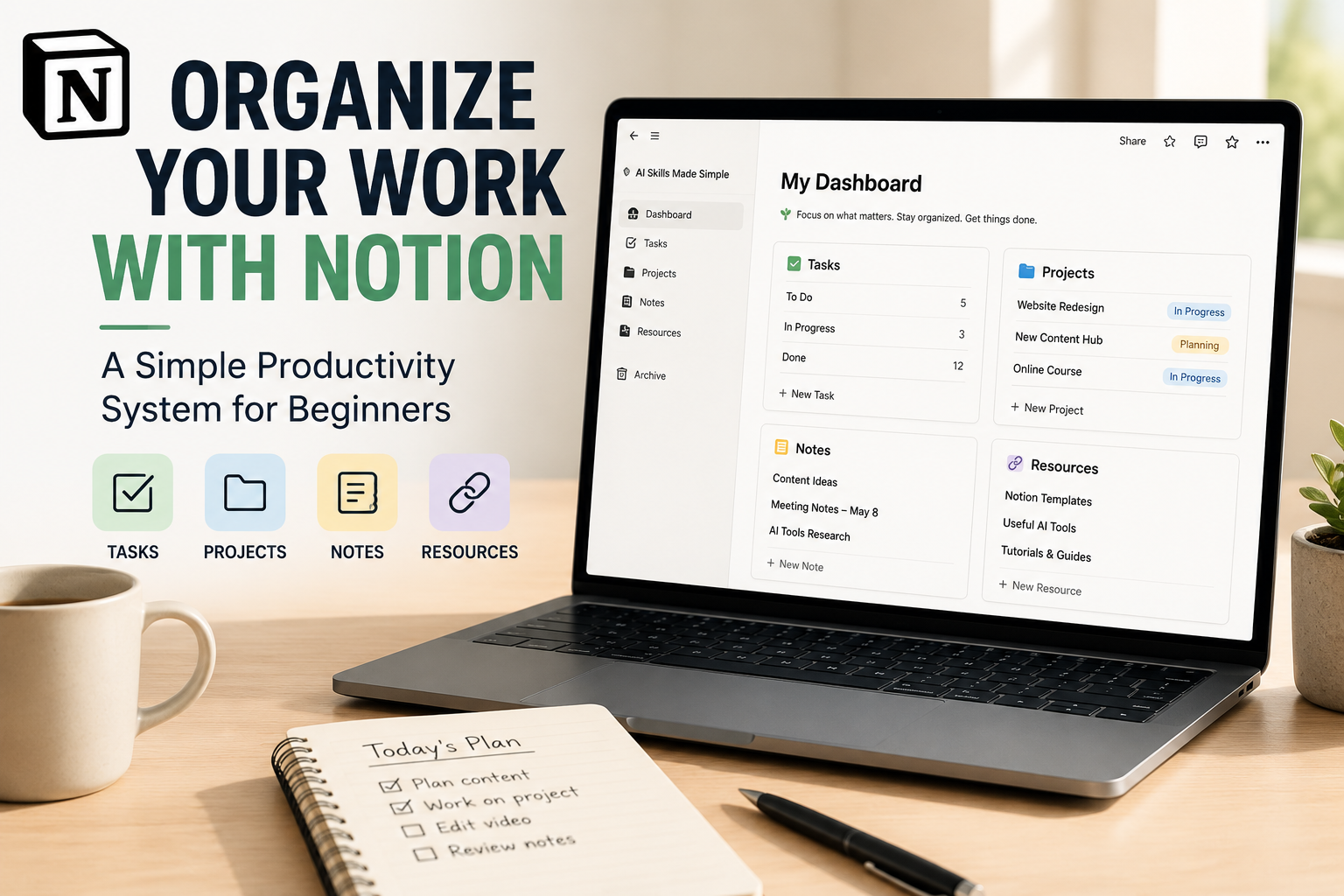
Start by creating one main Notion page that acts as your central dashboard. Think of this as the home base for your work. From here, you can quickly access your tasks, projects, notes, ideas, and important resources without searching through multiple apps.
You don’t need to build everything at once. Start with four simple areas: Tasks, Projects, Notes, and Resources. As your system grows, you can add more sections based on the way you work.
If you want to build a broader productivity setup, check out our 7 Best AI Productivity Tools for Beginners in 2026 to discover other tools that can work alongside Notion.
Create a Simple Task List
Your task list should be simple enough that you’ll actually use it. Create a page called Tasks and add the things you need to complete. For each task, you can include a due date, priority, or status if those details are useful to you.
Avoid creating too many categories in the beginning. A basic system such as To Do, In Progress, and Done is enough to keep track of your work without making your Notion workspace complicated.
Organize Your Projects
Projects are different from individual tasks because they usually involve several steps. Create a Projects page in Notion where you can keep track of larger goals you’re working toward, such as launching a website, completing a course, planning content, or developing a new skill.
To organize work with Notion effectively, keep the most important information for each project together: the project goal, key tasks, deadline, notes, and useful resources. This gives you one place to see what needs to happen next instead of searching through different documents.
Keep Your Notes in One Place
Instead of keeping ideas and useful information scattered across different apps, create a dedicated Notes area in Notion. You can use it for meeting notes, research, ideas, learning materials, content plans, or anything else you may want to reference later.
When you organize work with Notion, give each note a clear title and keep related information together. As your collection grows, you can organize notes by topic or category. The goal is to make important information easy to find when you need it.
Build a Useful Resource Library
Create a Resources area for information you want to keep and use again. This could include useful websites, AI tools, templates, tutorials, reference documents, prompts, or learning resources.
Rather than simply saving links, add a short description explaining why each resource is useful. This makes your library much easier to search and helps you remember why you saved something in the first place.
How to Use Your Notion System Every Day
A productivity system only works if you use it consistently. At the beginning of each day, open your Notion dashboard and review your tasks and active projects. Decide what is most important and focus on a small number of priorities rather than trying to do everything at once.
At the end of the day, take a few minutes to update completed tasks, capture new ideas, and organize anything you’ve added during the day. This simple routine keeps your workspace useful and prevents it from becoming cluttered.
Common Notion Mistakes Beginners Should Avoid
One of the biggest mistakes beginners make is trying to build a complicated Notion workspace from the beginning. Too many databases, properties, templates, and dashboards can quickly turn a productivity system into another source of work.
Another common mistake is spending more time designing the workspace than actually using it. Your Notion setup doesn’t need to look perfect. It needs to help you find information, manage your tasks, and make progress on your projects.
Finally, avoid saving everything without regularly reviewing it. Set aside a few minutes each week to remove outdated information, organize new notes, and review your upcoming tasks and projects.
Start Simple and Improve Your System Over Time
The best Notion productivity system is the one you can use consistently. Start with the basics—Tasks, Projects, Notes, and Resources—and give yourself time to discover what works best for you. You can always add more advanced features later as your needs grow.
The goal isn’t to create the most complicated workspace. It’s to build a simple system that helps you stay organized, reduce distractions, and spend more time doing meaningful work.
Want Help Building a Better Notion System?
If you’d like a more structured way to organize your knowledge, projects, resources, and workflows in Notion, take a look at Notion Help Kit. It can help you build a more organized digital workspace without having to figure everything out from scratch.
Affiliate Disclosure: This article contains affiliate links. If you make a purchase through one of these links, AI Skills Made Simple may earn a commission at no additional cost to you.