How to Use Otter AI: 15 Powerful Ways to Save Time in 2026
Learning how to use Otter AI can completely change the way you handle meetings, interviews, lectures, conversations, and spoken information.
Instead of trying to listen, understand, and manually write notes at the same time, Otter can capture conversations and turn them into searchable text.
But transcription is only part of what the platform can do.
Otter has developed into a broader AI meeting and conversation platform with automated summaries, AI Chat, meeting knowledge search, collaboration features, and integrations with popular meeting platforms.
For beginners, the important question isn’t simply What is Otter?
It’s:
How can I actually use Otter AI to save time and become more productive?
That’s exactly what we’ll cover in this guide.
What Is Otter AI?
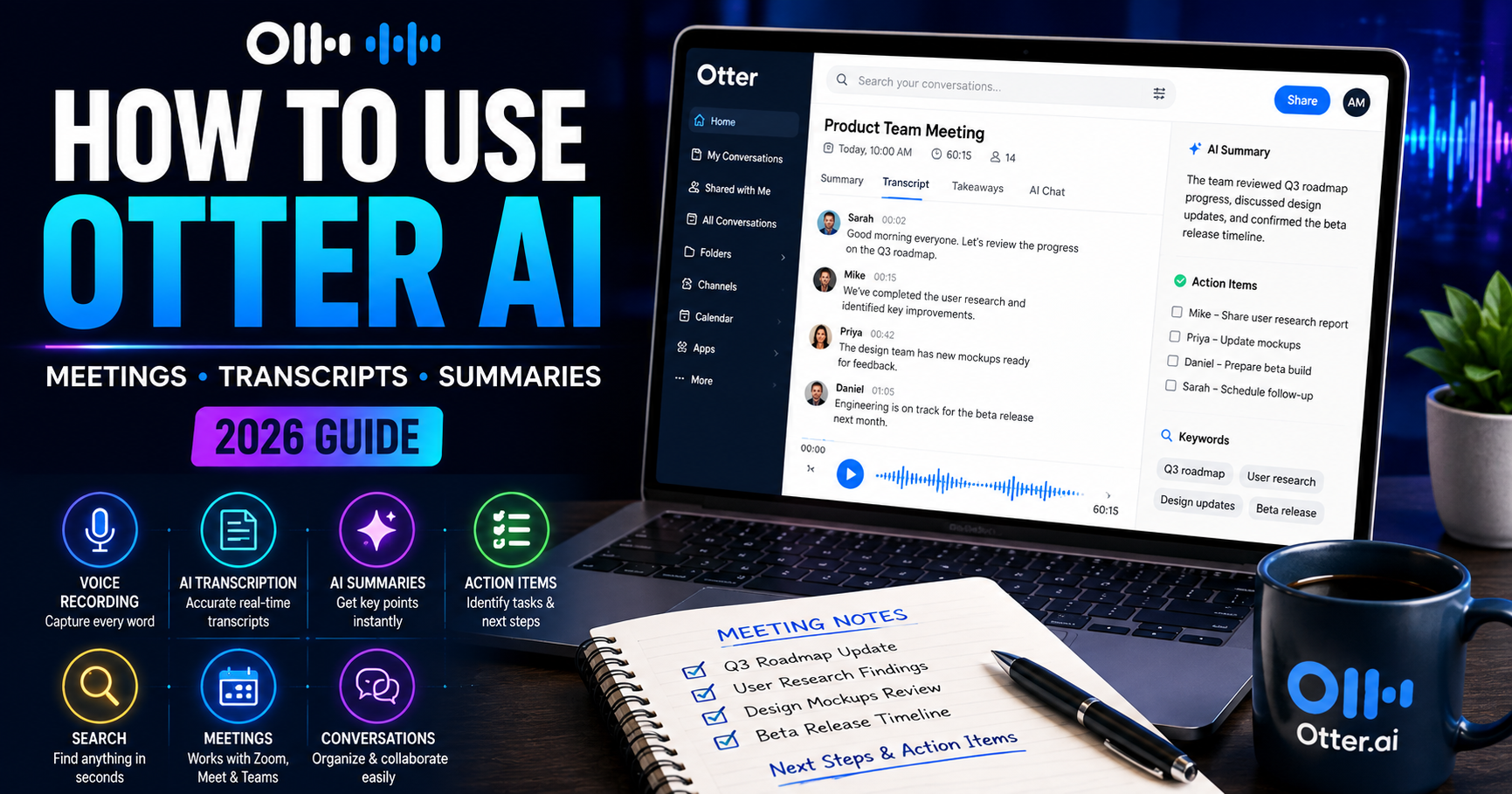
Otter AI is an AI-powered platform designed to capture, transcribe, organize, and help users understand spoken conversations.
It can be used for virtual meetings as well as other recorded conversations. Otter’s Notetaker can work with Zoom, Google Meet, and Microsoft Teams, while recordings can also be captured or imported in other ways.
Some of its major capabilities include:
- Real-time transcription
- Speaker identification
- Automated meeting summaries
- AI-powered questions and answers
- Searchable meeting transcripts
- Audio and video file transcription
- Calendar connections
- Meeting collaboration
- Takeaways and action items
- Sharing and organization tools
This makes Otter useful for professionals, students, business owners, content creators, researchers, recruiters, sales teams, and anyone who regularly works with spoken information.
Let’s look at practical ways to use it.
1. Create Your Otter AI Account
The first step in learning how to use Otter AI is setting up your account.
Go to the official Otter website and create an account. Otter currently provides a Basic option that allows new users to begin using the service without immediately moving to a paid plan.
Once you’re inside, don’t try to master everything immediately.
Start with three things:
- Explore your Otter dashboard.
- Check your recording and transcription options.
- Review your calendar and meeting integrations.
This will give you a basic understanding of how information moves through the platform.
2. Use Otter AI to Transcribe Conversations
Transcription remains one of Otter’s most useful features.
Instead of manually writing everything being said, you can record a conversation and allow Otter to convert the speech into text.
This can be useful for:
- Meetings
- Interviews
- Lectures
- Brainstorming sessions
- Research conversations
- Business discussions
- Training sessions
- Webinars
Otter can display transcription while a conversation is taking place, allowing you to follow the text as people speak.
You can then review and edit the transcript afterward.
3. Automatically Take Notes During Meetings
Taking detailed notes during a meeting can be distracting.
You’re trying to listen to someone while simultaneously deciding what information is important enough to write down.
Otter Notetaker can reduce that problem.
It can automatically join supported online meetings and capture the conversation, giving you a record to review later.
This allows you to concentrate more on participating in the discussion rather than trying to document every sentence.
4. Connect Otter AI to Your Calendar
One of the best ways to make Otter more useful is to connect your calendar.
Otter supports calendar connections that can help it recognize scheduled meetings.
A simple workflow might look like this:
- Connect your supported calendar.
- Allow your scheduled meetings to sync.
- Choose which meetings you want Otter Notetaker to attend.
- Let Otter capture the meeting.
- Review the transcript and summary afterward.
This reduces the number of manual steps required each time you have a meeting.
5. Use Otter AI With Zoom
Zoom users can also incorporate Otter into their meeting workflow.
Otter Notetaker can join supported Zoom meetings to record and transcribe the conversation in real time.
Afterward, instead of relying on memory, you have a searchable record of what happened.
This can be especially helpful when meetings include:
- Important decisions
- Project deadlines
- Customer requests
- New ideas
- Assigned responsibilities
- Technical discussions
You can return to the conversation rather than asking, “What exactly did we agree on?”
6. Use Otter With Google Meet and Microsoft Teams
Otter isn’t limited to Zoom.
Its Notetaker also supports Google Meet and Microsoft Teams meetings.
That flexibility matters if you work with different clients or organizations.
One company may use Zoom.
Another may use Google Meet.
Another may prefer Microsoft Teams.
Instead of building completely different note-taking systems around each platform, Otter can become a central location for your meeting knowledge.
7. Generate Automatic Meeting Summaries
A transcript can contain thousands of words.
Sometimes you don’t need to reread every word—you need the important points.
Otter provides automated summaries designed to make meeting information easier to review.
This can be particularly useful after long conversations.
Rather than reading an entire transcript immediately, start with the summary.
Then open the transcript when you need additional context.
This creates a much more efficient workflow:
Meeting → Transcript → Summary → Important Details → Action
8. Use Otter AI Chat to Ask Questions About Meetings
This is where Otter becomes more than a transcription service.
Otter AI Chat allows users to ask questions about conversations and generate information from meeting content.
For example, after a meeting you might ask:
- “What were the main decisions?”
- “What deadlines were mentioned?”
- “Summarize the customer’s concerns.”
- “What tasks were assigned?”
- “What did we decide about the project?”
- “Create a follow-up email from this meeting.”
Otter AI Chat can also work with context across conversations, channels, and folders, depending on the experience and account setup.
This can save considerable time when you have accumulated many meetings.
9. Turn Meeting Discussions Into Action Items
Meetings are only valuable when useful decisions turn into action.
One practical way to use Otter is to identify tasks and follow-ups from conversations.
After a meeting, review:
- What was decided?
- Who is responsible?
- What needs to happen next?
- Is there a deadline?
- Does another meeting need to be scheduled?
Otter’s meeting features are designed to help surface takeaways and action-oriented information from conversations.
This turns the transcript into something much more valuable than a passive record.
10. Search Old Conversations Instead of Reading Them Again
Imagine having dozens—or eventually hundreds—of meeting transcripts.
Reading every transcript again would defeat much of the purpose of using AI.
Otter provides search capabilities that allow you to find information within your conversations.
You might search for:
- A customer’s name
- A project
- A deadline
- A product
- A topic
- A particular speaker
- An important decision
Otter AI Chat can further help users work with information across past conversations.
Over time, your collection of conversations can therefore become a searchable knowledge base.
11. Transcribe Existing Audio and Video Files
You don’t necessarily need to record everything directly through Otter.
The platform also supports importing prerecorded audio and video files for transcription.
This opens up additional possibilities.
For example, you could transcribe:
- Recorded interviews
- Webinars
- Training videos
- Voice recordings
- Research interviews
- Existing meeting recordings
- Content ideas recorded on your phone
Once the spoken information becomes text, it becomes much easier to search, edit, summarize, and reuse.
12. Turn Conversations Into Written Content
This is particularly interesting for creators and marketers.
A good conversation can contain enough ideas for several pieces of content.
Otter AI Chat can generate custom content such as emails and status updates using meeting information.
You could develop a workflow such as:
Conversation → Transcript → Summary → Key Ideas → Draft Content
For example, a 30-minute expert interview could potentially inspire:
- A blog article
- A LinkedIn post
- An email
- A newsletter
- Several social media posts
- A FAQ
- A video outline
The AI shouldn’t replace your judgment or original thinking, but it can make it easier to extract useful material from conversations you’ve already had.
13. Organize Conversations Into Folders and Channels
As your number of transcripts grows, organization becomes increasingly important.
Otter provides tools including folders and Channels for organizing and collaborating around conversations.
For example, you might create separate areas for:
- Client meetings
- Content ideas
- Marketing
- Training
- Sales calls
- Interviews
- Research
- Internal projects
Good organization becomes especially valuable after you’ve used Otter for several months.
Don’t wait until you have hundreds of conversations before creating a structure.
14. Use Otter AI for Learning and Research
Otter isn’t useful only in corporate meetings.
Students, researchers, journalists, and independent learners can also benefit from transcription.
For example, you could use it to capture a permitted lecture or interview and then organize the information afterward.
A productive study workflow could be:
- Capture the conversation.
- Review the automated transcript.
- Read the summary.
- Highlight important concepts.
- Ask questions about the material.
- Create your own study notes.
- Verify important facts against original sources.
One caution is important here: AI-generated responses can occasionally be incorrect. Otter itself advises users to apply judgment and verify critical information.
Use AI to assist your understanding—not replace it.
15. Build a Complete Otter AI Productivity Workflow
The most powerful way to learn how to use Otter AI is to stop thinking about it as simply a transcription tool.
Think of it as part of a larger information workflow.
For example:
Calendar → Meeting → Recording → Transcript → Summary → AI Questions → Action Items → Follow-Up
That workflow can reduce repetitive administrative work surrounding meetings.
You could even combine Otter with other AI tools.
For example:
Otter → ChatGPT → Notion [how to write better ChatGPT prompts]
Otter captures the conversation.
ChatGPT helps transform selected information into structured content or ideas. [how to use ChatGPT for productivity]
Notion stores the finished information inside your broader workspace. [organize work with Notion]
That’s when individual AI tools begin working together as a productivity system.
Who Should Use Otter AI?
Otter can be particularly useful for people who regularly work with conversations and meetings.
That includes:
- Business owners
- Remote workers
- Students
- Teachers
- Content creators
- Journalists
- Researchers
- Recruiters
- Sales professionals
- Consultants
- Project managers
- Marketing teams
However, someone who rarely attends meetings or records conversations may not need a dedicated AI meeting assistant.
The value depends on how much spoken information you need to capture and reuse.
Advantages of Using Otter AI
The strongest advantages include:
- Less manual note-taking
- Searchable meeting records
- Automatic summaries
- AI-assisted meeting analysis
- Easier follow-ups
- Support for major online meeting platforms
- Ability to import existing recordings
- Better organization of spoken information
- Potential time savings for meeting-heavy work
The larger benefit isn’t merely transcription.
It’s making conversations easier to find, understand, and act upon later.
Things to Remember Before Using AI Meeting Tools
AI meeting assistants also require responsible use.
Before recording or transcribing conversations, make sure you understand the relevant consent requirements, organizational rules, and privacy expectations that apply to you and the other participants.
You should also review important transcripts rather than assuming automated transcription is perfect.
Pay particular attention to:
- Names
- Numbers
- Financial information
- Dates
- Technical terminology
- Commitments
- Legal information
- Important business decisions
AI can save time, but human review still matters.
Is Otter AI Worth Using in 2026?
For people who attend frequent meetings, conduct interviews, or regularly need to convert spoken conversations into organized information, Otter can be a valuable productivity tool.
Its usefulness extends beyond creating transcripts.
The combination of meeting capture, automated summaries, searchable conversations, AI Chat, collaboration, and action-oriented features makes it particularly relevant for people whose work generates large amounts of spoken information.
If you’re new to it, don’t try every feature immediately.
Start with one simple workflow:
Record one conversation → review the transcript → read the summary → identify the important actions.
Then gradually introduce the more advanced features.
Frequently Asked Questions About How to Use Otter AI
Is Otter AI free?
Otter currently offers a Basic option that lets people start using the platform without immediately purchasing a paid plan. Features and usage limits vary by plan, so check the current plans before deciding what you need.
Can Otter AI join Zoom meetings?
Yes. Otter Notetaker can join supported Zoom meetings to capture and transcribe conversations.
Does Otter work with Google Meet?
Yes. Otter Notetaker supports Google Meet as well as Zoom and Microsoft Teams.
Can Otter AI summarize meetings?
Yes. Automated meeting summaries are one of Otter’s core productivity features.
Can I ask Otter questions about a meeting?
Yes. Otter AI Chat can answer questions and generate information based on conversations available to it.
Can Otter transcribe an existing recording?
Yes. Otter supports importing prerecorded audio and video files for transcription.
Final Thoughts on How to Use Otter AI
Learning how to use Otter AI isn’t simply about replacing a notebook.
The bigger opportunity is turning conversations into useful, searchable information.
Instead of allowing valuable ideas, decisions, and action items to disappear when a meeting ends, you can create a workflow that captures and organizes them.
Start small.
Record or transcribe one conversation.
Review the summary.
Search the transcript.
Ask questions about what happened.
Then decide which parts of the process genuinely save you time.
Used thoughtfully, Otter AI can become another valuable piece of a broader AI productivity {best AI productivity tools for beginners}system.